
Safety and Full Disk Access
What DiskBolt does before it moves anything, where things go, how to get them back, and why it asks for Full Disk Access.
Four rules every cleanup follows
- 01
Nothing goes without your yes
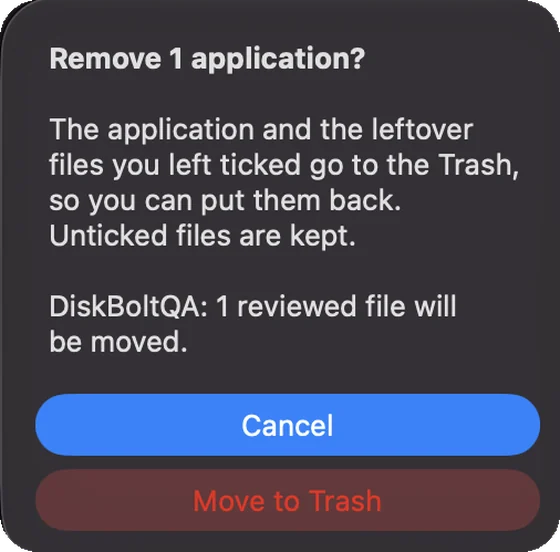
DiskBolt asks you to confirm before anything is removed, and the question names how many items will move.
- 02
The Trash, not a shredder
Items move to the macOS Trash, so you can put them back. The one exception, Xcode simulator runtimes, is flagged and asked about first.
- 03
Undo is right there
A 10 second Undo appears after each move, and Command-Z undoes the last move for the rest of the session.
- 04
Done means done
DiskBolt reports a cleanup only after macOS confirms the move to the Trash, never before.
The confirmation you will see
Before an app and its files move, DiskBolt asks a direct question with the count in it. Cancel is the default button, so pressing Return keeps everything.
The review panel is the only place items go between your selection and the Trash. Anything you untick there is kept.
Full Disk Access, explained
What it is
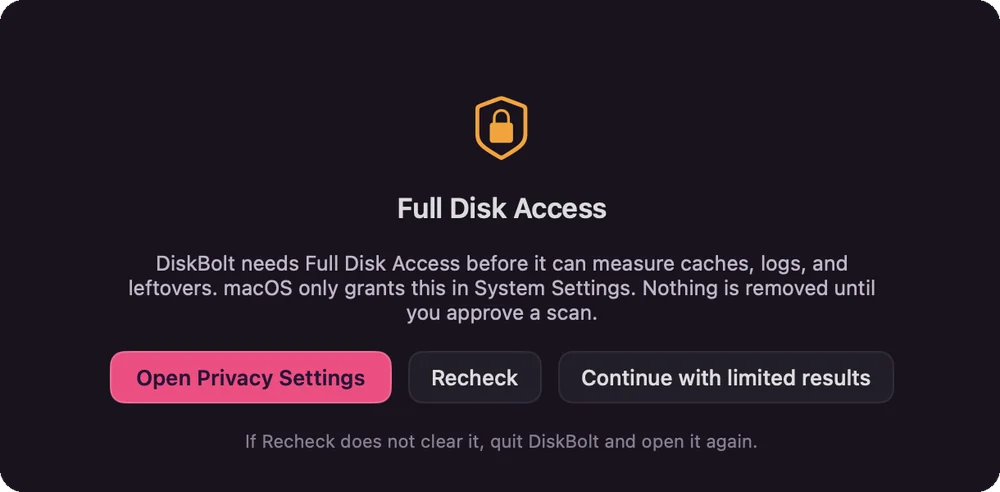
Full Disk Access is a macOS privacy permission. Without it, apps cannot read some protected folders, including places where caches, logs and app leftovers are kept.
Why DiskBolt asks
DiskBolt needs it to measure those folders. Nothing is removed until you approve a scan and confirm what goes.
How you grant it
Only you can grant it. DiskBolt's Open Privacy Settings button takes you to System Settings > Privacy & Security > Full Disk Access, where you switch DiskBolt on. Then press Recheck. If Recheck does not clear it, quit DiskBolt and open it again.
What works without it
Choose Continue with limited results. DiskBolt then cannot measure the protected folders, so it may find less to clear.
How to take it back
Switch DiskBolt off in System Settings > Privacy & Security > Full Disk Access at any time.
Plain answers on the edges
The one thing that skips the Trash
Deleting Xcode simulator runtimes cannot go to the Trash. DiskBolt asks before doing it.
When your password is needed
Some maintenance tasks on the Optimize screen need administrator rights. DiskBolt labels them before you run them.
Signing
DiskBolt is in pre-release. The current tester build is ad hoc signed and not notarised, so macOS warns you the first time you open it.